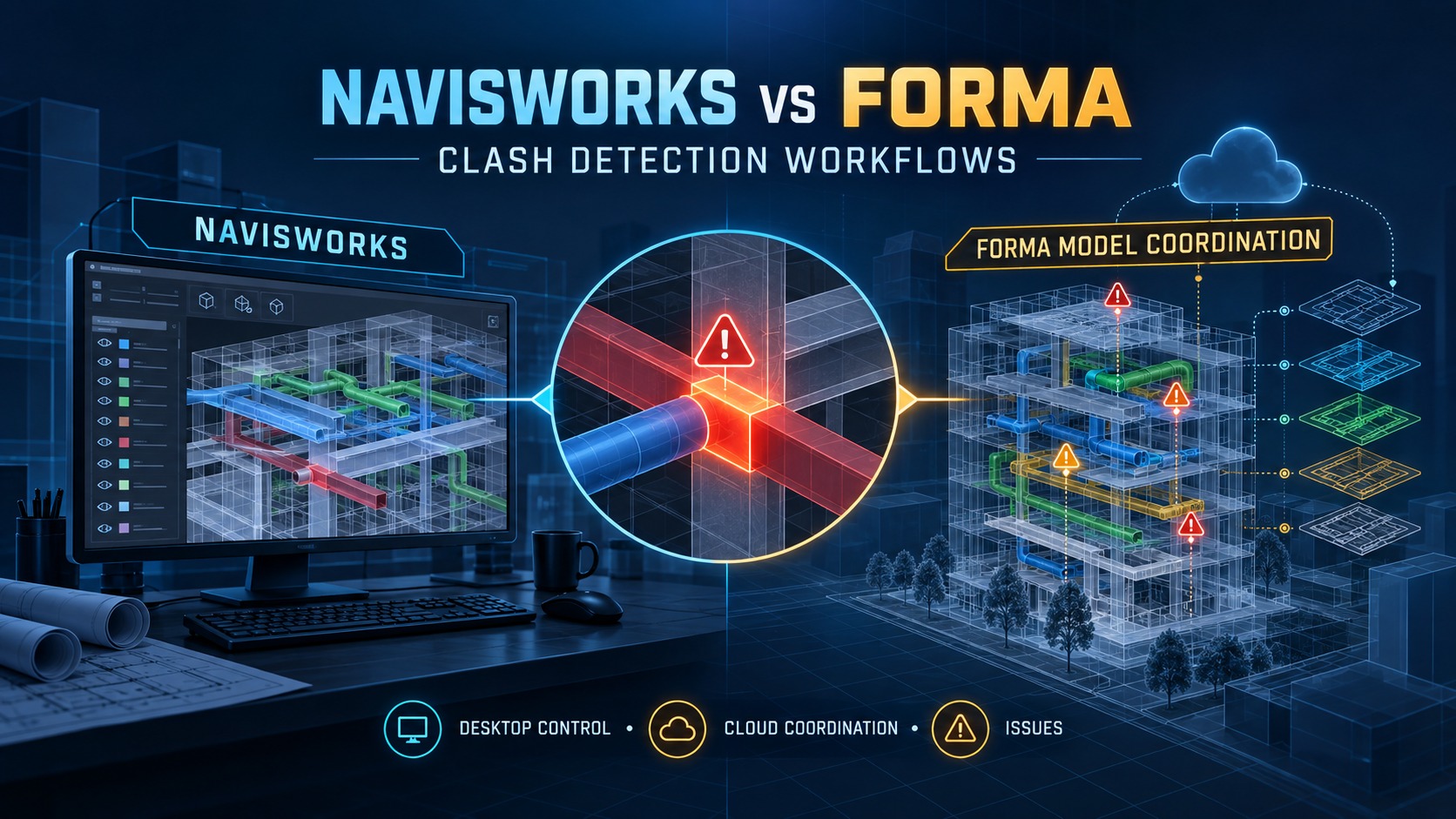
BIM coordination teams now have two closely connected Autodesk workflows for finding and managing model clashes: Navisworks Manage Clash Detective and Autodesk Forma Model Coordination.
They overlap, but they are not the same tool.
Navisworks gives BIM coordinators deep control over clash tests, tolerances, selection sets, reporting, point-cloud checks, and time-based coordination. Model Coordination moves much of the repetitive coordination process to the cloud, automatically checking supported models as teams publish new versions and making the results easier to review across a broader project team.
The practical question is therefore not “Which product replaces the other?”
It is:
Which part of the coordination workflow belongs in Navisworks, and which part belongs in Autodesk Forma Model Coordination?
Quick Answer
Use Autodesk Forma Model Coordination when you want automatic cloud-based clash detection, continuous review of current published models, browser access, and issue collaboration across a project team.
Use Navisworks Manage when you need highly controlled clash tests, custom tolerances, clearance or duplicate checks, search-set logic, point-cloud interference testing, advanced reporting, or time-based clashes with TimeLiner.
For many BIM coordination teams, the strongest workflow is a hybrid:
Forma Model Coordination for continuous cloud coordination → Navisworks for advanced investigation and controlled clash testing → synchronized issues back to Forma.
First: What Happened to ACC Model Coordination?
Many users still search for ACC Model Coordination or Autodesk Construction Cloud Model Coordination.
On March 24, 2026, Autodesk Construction Cloud became part of Autodesk Forma. Autodesk Docs was renamed Forma Data Management, while BIM Collaborate Pro became Forma Design Collaboration.
Autodesk described the transition as a platform and branding evolution rather than a disruptive migration. Existing project data, workflows, integrations, licensing, and APIs continued without a required data migration.
Model Coordination remains the cloud workflow used to aggregate models, detect clashes, review results, and create issues. For an infrastructure example of Autodesk Forma’s connected AEC direction, see Civil 3D Forma Connected Client: What It Changes for Infrastructure BIM.
What Navisworks Clash Detective Does Best
Navisworks Manage remains Autodesk’s most configurable desktop clash-testing environment.
Clash Detective lets a BIM coordinator define exactly what should be tested against what, using Selection Sets and Search Sets to create repeatable coordination matrices.
Typical tests include structure vs HVAC, structure vs plumbing, architecture vs MEP, cable tray vs ductwork, utilities vs civil structures, and temporary works vs permanent works.
Navisworks also provides multiple clash-test types.
Hard Clash
Finds actual geometric intersections.
Hard (Conservative)
Uses a more conservative intersection method.
Clearance Clash
Checks whether objects come within a specified distance of one another. This is useful for insulation, access space, maintenance zones, and required service separation.
Duplicate Clash
Helps identify geometry modeled or referenced more than once.
Navisworks Gives You More Tolerance Control
Tolerance is one of the biggest practical differences.
In Navisworks Clash Detective, the coordinator can set the tolerance for each clash test. Different systems can therefore use different rules.
Autodesk Forma Model Coordination works differently.
Autodesk currently documents a fixed 0.5 mm detection tolerance for automatic clash detection. That value is not configurable at the clash-engine level.
You can apply penetration/tolerance filters while reviewing results, but those filters do not change the underlying automatic clash calculation.
This is one reason clash counts can differ between Navisworks and Model Coordination. Autodesk recommends using the same 0.5 mm tolerance in Navisworks when comparing basic results more closely.
What Forma Model Coordination Does Best
Model Coordination focuses on continuous cloud coordination.
A project administrator creates a coordination space and connects it to a folder in Forma Data Management. When supported 3D models are added or updated, Autodesk’s clash service can automatically check them.
A traditional desktop workflow often looks like:
collect models → append models → run tests → export results → distribute reports
A cloud coordination workflow can look more like:
publish model → cloud clash check → review → classify → create issue
The important advantage is that coordination can stay connected to the latest published project models and a shared issue-management environment.
Supported Files Matter
Model Coordination can aggregate many file formats, but aggregation support and automatic clash support are not the same thing.
Autodesk requires stable and unique element IDs across model versions for automatic clash workflows. The current supported-file table includes clash-capable workflows for key formats such as RVT and DWG, along with supported tracked NWC and IFC workflows.
Other formats may still be useful for aggregation and visual review without participating in automatic clash detection.
Do not assume that because a file can be viewed in Model Coordination it can also generate automatic clashes.
What About NWD Files?
Autodesk support states that NWD files can be used for aggregation in Model Coordination, but they are not supported for Model Coordination automatic clash generation.
If your coordination process depends heavily on NWD deliverables, Navisworks remains important.
Can Navisworks Clash Results Sync to Model Coordination?
Yes—but not as a full clash-matrix transfer.
The complete Navisworks Clash Detective result set does not populate the Model Coordination clash matrix. Autodesk documents this as expected behavior.
Instead, the workflow is issue-based:
- Open Model Coordination content in Navisworks using the Coordination Issues Add-In.
- Run Clash Detective tests.
- Select a clash or clash group.
- Create an issue from that result.
- Synchronize the issue back to Model Coordination.
With supported add-in versions and stable IDs, Model Coordination can also display clash highlighting associated with Navisworks-created clash issues.
This creates a useful division of responsibilities:
Navisworks generates and investigates advanced clash results.
Forma distributes actionable coordination issues.
Automatic Cloud Clash vs Controlled Clash Matrix
Model Coordination is strong when supported models should be checked continuously without requiring a coordinator to rebuild and rerun every basic test after each publication.
Navisworks is strong when the coordinator needs precise control over test A vs test B, model subsets, search-set rules, clash type, tolerance, exclusions, reporting, naming, and grouping strategy.
For complex projects, reducing “clash noise” is often just as important as finding clashes.
Model Coordination Has Scale Limits You Should Know
Cloud automation does not mean unlimited coordination-space size.
Autodesk currently documents limits including up to 1,000 models in a clash-enabled coordination space, up to 100 models displayed in the Clash Matrix, up to 20 active clash-enabled coordination spaces, and up to 400,000 classified clashes.
Each published Revit 3D view can count as a model for coordination-space limits.
For very large programs, organize spaces by area, discipline, package, zone, or phase instead of treating one giant coordination space as the default.
Where Navisworks Still Has a Major Advantage: 4D Clashing
Navisworks Clash Detective can connect to TimeLiner for time-based clash checking.
Instead of asking only “Do these two objects occupy the same space?”, a time-based workflow can ask “Will these objects occupy the same space at the same time during construction?”
This is useful for temporary works, crane movements, access routes, construction equipment, work packages, phased installation, and site logistics.
Point Clouds Are Another Important Difference
Navisworks Clash Detective can test model geometry against laser-scanned point-cloud data.
That supports existing-condition validation, retrofit coordination, construction verification, and clearance checks against scanned reality.
Model Coordination can display and aggregate supported point clouds for visual comparison and QA/QC, but teams should not assume that cloud point-cloud viewing provides the same interference-testing behavior as Navisworks.
Comparison Table
| Capability | Navisworks Manage | Autodesk Forma Model Coordination |
|---|---|---|
| Environment | Desktop | Web / cloud |
| Clash execution | User-defined tests | Automatic on supported coordination-space models |
| Hard clashes | Yes | Yes, on supported clash-enabled models |
| Clearance clashes | Yes | No direct user-defined Clash Detective equivalent |
| Duplicate clash test | Yes | No direct equivalent |
| Custom detection tolerance | Yes | No — fixed 0.5 mm detection tolerance |
| Search / Selection Sets | Yes | Different cloud filters/exclusions |
| Automatic recheck after model publication | Manual/re-run workflow | Core strength |
| Time-based clash with schedule | Yes, with TimeLiner | No direct equivalent |
| Point-cloud clash testing | Yes | Viewing/aggregation; verify clash support separately |
| Browser access | No | Yes |
| Shared cloud issue workflow | Via Coordination Issues Add-In | Native |
| Full Navisworks clash matrix sync to cloud | No | Not applicable |
| Issues from Navisworks clashes | Yes, via add-in | Receives/synchronizes supported issues |
| NWD automatic cloud clash | No | NWD aggregation only; clash in Navisworks |
Which Workflow Should You Use?
Use Model Coordination first when disciplines publish frequently, browser access matters, issues need to be visible to the wider team, and routine automatic cloud clash detection is the priority.
Use Navisworks first when advanced clash logic is the priority: custom tolerances, clearance checks, duplicate detection, detailed Search Sets, point clouds, 4D/TimeLiner checks, or coordinator-controlled reports.
Use a hybrid workflow when you have a dedicated BIM/VDC coordination process:
- Teams publish models to Forma Data Management.
- Model Coordination automatically detects routine supported-model clashes.
- The BIM coordinator opens coordination content in Navisworks.
- Advanced Clash Detective tests handle clearance, special tolerances, duplicates, point-cloud checks, or 4D conditions.
- Important Navisworks results are converted into issues.
- Issues synchronize back to Model Coordination for assignment and tracking.
Why Your Clash Counts May Not Match
Do not expect Navisworks and Model Coordination to always report the same number.
Common causes include tolerance settings, model versions, included models, exclusions, file-format/stable-ID support, different test definitions, clearance/duplicate tests, and the timing of the last successful cloud clash check.
Start by setting Navisworks to the same 0.5 mm tolerance when comparing basic hard-clash results, and confirm both environments use the same model versions.
Common Mistake: Treating Every Clash as an Issue
The value of coordination is not the total number of clashes found. It is the number of meaningful problems resolved before construction.
A useful workflow classifies noise, groups related conflicts, applies consistent tolerances, and turns only actionable items into issues.
Model Coordination helps distribute and track those actions. Navisworks helps the coordinator define and investigate complex tests.
Workflow-Selection Matrix for BIM Coordinators
Choose the workflow according to the coordination decision and its required evidence. Neither product is reduced to one feature; use this matrix alongside the file-support and clash-testing limitations explained above.
| Coordination task | Primary working environment | Handoff and validation |
|---|---|---|
| Cloud-first coordination across the latest published models | Forma Model Coordination | Confirm supported files, coordinate alignment, permissions, and publication state; use cloud issues for team follow-up |
| Continuous team access and issue collaboration | Forma Model Coordination | Assign a responsible reviewer and maintain a clear model/version reference; access does not replace technical review |
| Detailed clash rules, tolerances, and search/selection sets | Navisworks Manage with Clash Detective | Record the test type, selections, tolerance, exclusions, and input versions so the result can be reproduced |
| Advanced desktop investigation or TimeLiner-based coordination | Navisworks Manage | Investigate the clash in model/task context; preserve the test settings and the rationale for disposition |
| Shared cloud issue tracking plus detailed desktop investigation | Use both | Investigate in Navisworks and share selected clashes/groups as issues through the supported add-in workflow; do not expect the full desktop result set to become the cloud Clash Matrix |
For the product naming and project-continuity context, see ACC, Forma, Docs, Build, and BIM 360 explained. Use a common review scope and input version before comparing counts; cloud and desktop totals are not interchangeable acceptance criteria.
Final Takeaway
Navisworks Manage and Autodesk Forma Model Coordination are complementary rather than direct replacements.
Model Coordination is better suited to continuous cloud-based coordination, automatic clash detection on supported models, browser review, and shared issue management.
Navisworks Manage remains stronger when BIM coordinators need granular control over test types, tolerances, sets, point clouds, reporting, or 4D clash logic.
For many BIM teams, the most scalable approach is a hybrid workflow:
cloud automation for routine coordination, desktop precision for advanced analysis, and synchronized issues for project-wide action.
Official Sources
- Autodesk Construction Cloud is now Autodesk Forma — Autodesk News, March 24, 2026
- Model Coordination — Autodesk Help
- Supported Files in Model Coordination — Autodesk Help
- Clash FAQs — Autodesk Help
- Navisworks 2027 Clash Detective Window — Autodesk Help
- Navisworks Coordination Issues Add-In — Autodesk Help
- Navisworks clash detection results do not sync to the Model Coordination clash matrix in Autodesk Forma — Autodesk Support, August 6, 2026
- Product and Tool Limitations — Autodesk Help