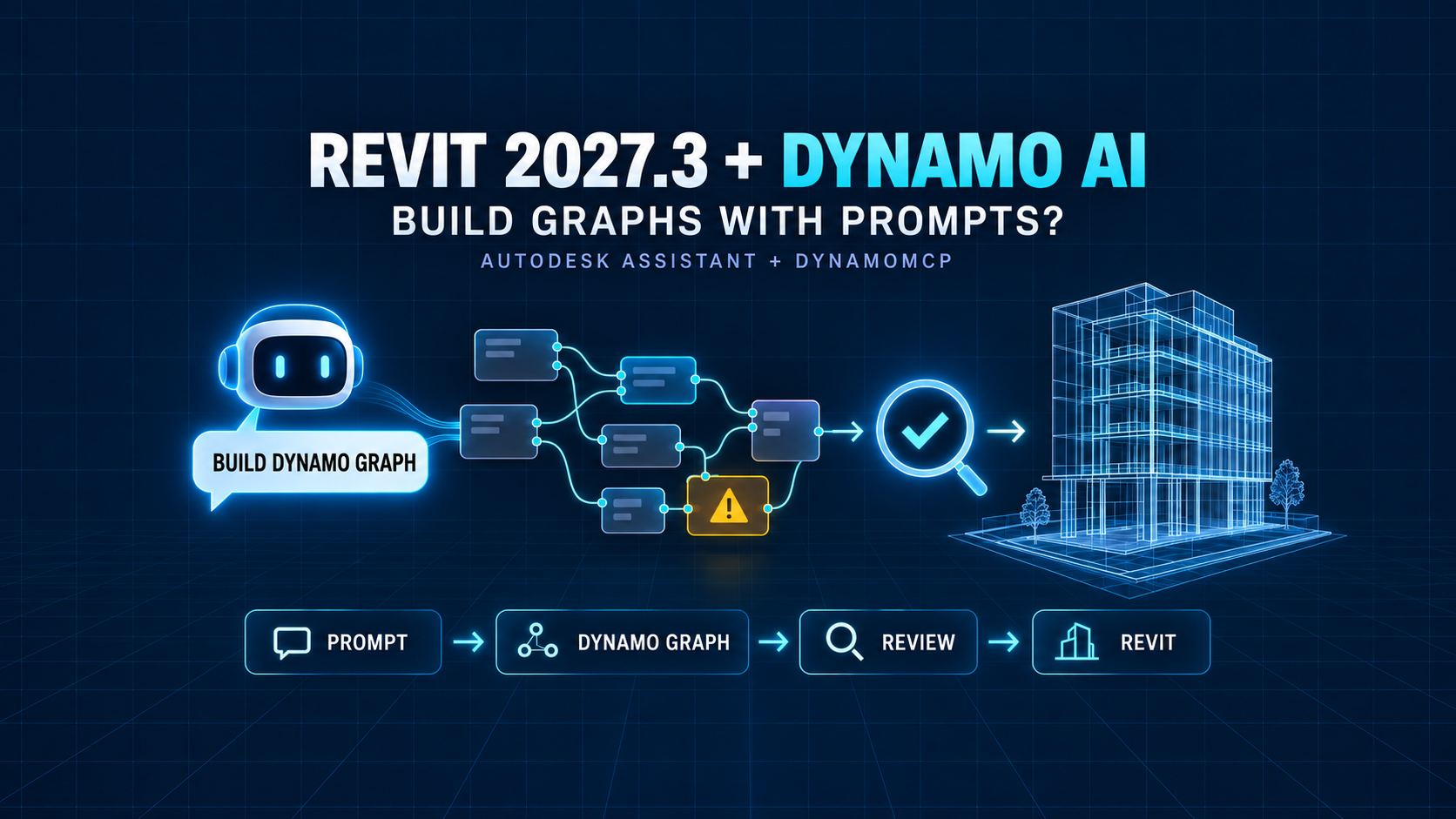
Revit 2027.3 changes the role of Autodesk Assistant in BIM automation.
Earlier Revit 2027 releases could use Autodesk Assistant to explain workflows and provide guidance based on Autodesk documentation. With Revit 2027.3 and Dynamo 4.2.1, the Assistant can now work directly with the Dynamo workspace to help create and modify graphs from natural-language instructions.
That is an important difference.
Instead of asking an AI system which nodes you should use and then building the graph yourself, you can describe the automation you want and review a graph that the Assistant creates or edits.
For BIM teams, this does not eliminate the need to understand Dynamo.
It changes where the first draft of an automation can come from.
Quick Answer
Revit 2027.3 includes Dynamo 4.2.1, which brings Autodesk Assistant and DynamoMCP into the Dynamo workflow.
You can describe a Revit automation task in ordinary language, let Autodesk Assistant create or modify the Dynamo graph, inspect the generated nodes and connections, and then decide whether to run it.
The important safety point is that the generated graph remains visible and editable.
Autodesk says the graph does not change the Revit model simply because the Assistant created it. The model changes only when the Dynamo graph is actually executed.
That means the recommended workflow is:
Prompt → generated graph → human review → test model → run → validate result
Not:
Prompt → production model changes automatically
What Changed in Revit 2027.3?
Autodesk released Revit 2027.3 on September 15, 2026.
One of the most important automation updates is Dynamo 4.2.1.
Autodesk lists several major additions:
- Autodesk Assistant inside the Dynamo workflow
- DynamoMCP
- new graph templates
- the ability for the Assistant to explain and troubleshoot graphs
- the ability to place and connect nodes
- support for code blocks and custom Python nodes
- data manipulation and geometry-building assistance
The key feature for Revit users is direct graph interaction.
Autodesk’s September 17 support guidance explains that Revit 2027 originally allowed Assistant to provide Dynamo guidance, but it could not generate the graph itself.
Starting with Revit 2027.3 and Dynamo 4.2.1, Autodesk Assistant can work with the Dynamo workspace and help create or modify graphs based on natural-language requests.
What Is DynamoMCP Doing Here?
DynamoMCP is the connection layer that allows an AI client to access Dynamo tools and context.
MCP stands for Model Context Protocol.
In simple terms, an MCP server exposes defined tools and data so an AI system can understand the current environment and perform approved actions through those tools.
In this workflow, DynamoMCP gives Autodesk Assistant access to Dynamo-related capabilities and node information.
That is why the Assistant can do more than explain a graph in text.
It can interact with the graph itself.
This should not be confused with Autodesk’s separate Revit Public MCP Server, which BuildTech Scope covered previously.
The Revit Public MCP Server is a separate technology for connecting MCP-compatible AI clients to a live Revit session through a defined toolset.
DynamoMCP is specifically part of the Dynamo automation workflow.
What Do You Need?
For the Revit workflow described in Autodesk’s current support documentation, you need:
- Revit 2027.3 or a later supported build
- Dynamo 4.2.1x or later
- Autodesk Assistant available in Revit
- network access
- an Autodesk sign-in where required
You do not need to install a separate DynamoMCP package for the standard Revit 2027.3 workflow described by Autodesk.
DynamoMCP is integrated with the current Dynamo experience.
Autodesk Assistant is not available in Dynamo when NoNetworkMode is enabled.
That matters for organizations that deliberately isolate production workstations from external network services.
How to Create a Dynamo Graph with Autodesk Assistant
The workflow is simple in concept.
1. Start Revit 2027.3
Confirm the Revit build first.
Autodesk lists Revit 2027.3 as build 27.3.0.28, released September 15, 2026.
2. Open Autodesk Assistant
Open Autodesk Assistant in Revit.
When Dynamo is part of the active workflow, the Assistant can use Dynamo capabilities provided through DynamoMCP.
3. Describe the Result You Want
Use normal language.
For example:
Create a Dynamo graph that finds all floor plan views, adds the prefix BIM_ to the view name, and leaves the graph ready for review without running it.
The best prompts describe the desired result, scope, and constraints.
A vague request such as “fix my views” gives the Assistant much less information to work with.
A stronger prompt defines:
- what elements should be affected
- which property should change
- how the new value should be constructed
- whether existing values should be preserved
- whether the graph should only be built or also prepared for execution
4. Review the Generated Graph
Do not judge the result only by whether the graph looks complete.
Check the actual node logic.
Verify:
- element collection
- category filtering
- parameter names
- list structure
- string operations
- data types
- package dependencies
- Python nodes
- output targets
The graph is visible and editable, so this is where a Dynamo user should inspect the automation before running it.
5. Test on a Safe Model
Use a test copy or non-production model first.
The graph itself does not change the Revit model until it runs, but once executed it can perform the same kinds of Revit changes as another valid Dynamo graph.
6. Run and Validate
Compare the result with the original goal.
Do not assume that a graph is correct simply because it executed without an error.
A technically valid graph can still change the wrong elements, use the wrong parameter, or produce an incomplete result.
What Can Autodesk Assistant Do in Dynamo?
Autodesk’s current Dynamo documentation describes a broad set of graph-level capabilities.
The Assistant can help:
- explain an existing graph
- troubleshoot warnings or logic problems
- place and connect nodes
- create code blocks
- work with installed custom package nodes
- create custom Python nodes when explicitly requested
- manipulate lists and data
- build geometry
- organize graph logic
- create or modify graph structures from prompts
This can be especially useful for users who know the result they want but do not remember the exact Dynamo node sequence.
It can also reduce the time spent searching documentation for basic node combinations.
What Can It Not Do?
The current limitations are just as important as the capabilities.
It Cannot Automatically Install External Packages
Autodesk Assistant can use nodes from Dynamo packages that are already installed.
It cannot install, update, modify, or remove external packages for you.
If a generated workflow depends on a package that is not available in your environment, package management is still a separate user responsibility.
It Does Not Choose Python by Default
Autodesk says the Assistant can write Python when explicitly requested.
That does not mean it automatically turns every workflow into a Python script.
If Python is used, you should confirm the Python engine and version supported by the target Dynamo/Revit environment.
It Requires Network Access
Autodesk Assistant and DynamoMCP are unavailable in Dynamo NoNetworkMode.
Organizations with security-controlled BIM environments should test this requirement against their IT policy before planning an office-wide deployment.
It Still Requires Validation
Autodesk explicitly recommends reviewing and validating AI-generated workflows before production use.
This is critical.
AI can generate a structurally plausible graph that still encodes the wrong design intent.
The BIM professional remains responsible for the outcome.
Does Autodesk Assistant Run the Revit Changes Automatically?
The important distinction is between building the graph and executing the graph.
Creating or editing a Dynamo graph does not by itself modify the Revit model.
The graph has to run before model changes occur.
That gives users a review point.
For high-impact automation, keep that review point intentional.
Do not treat “graph generated successfully” as equivalent to “workflow approved for production.”
A Better Prompting Pattern for BIM Automation
The most useful prompts describe constraints, not just outcomes.
Compare these two requests.
Weak prompt:
Rename my views.
Stronger prompt:
Create a Dynamo graph that collects only floor plan views that are not templates, keeps the existing view name, adds the prefix QA_, and does not run the graph automatically.
The second request defines:
- category
- exclusion rule
- naming behavior
- desired output
- execution constraint
That reduces ambiguity.
A good BIM automation prompt can follow this structure:
Target + Filter + Action + Rule + Exception + Execution condition
For example:
Collect doors on Level 02, filter elements where Fire Rating is empty, write “CHECK” to the QA Status parameter, ignore door types, and build the Dynamo graph for review without running it.
Even then, the graph should be inspected before execution.
Does This Replace Learning Dynamo?
No.
It may reduce the amount of node memorization required to get started, but understanding Dynamo becomes more important when the graph is generated by somebody—or something—else.
A reviewer still needs to recognize:
- whether the correct elements are collected
- whether list levels are correct
- whether null values are handled
- whether transactions are safe
- whether a package dependency is acceptable
- whether a Python node is maintainable
- whether the graph can be reused across projects
AI can reduce graph-building friction.
It does not remove automation governance.
Why This Matters for BIM Managers
For BIM managers, the main opportunity is not simply faster graph creation.
It is lowering the entry barrier to controlled automation.
A team member may be able to describe a repetitive process before they can build the complete Dynamo graph manually.
That can shorten the path from:
problem identified → automation prototype
But the organization still needs standards for:
- graph review
- testing
- package approval
- version control
- naming
- documentation
- production deployment
Without those controls, faster graph generation can also mean faster generation of inconsistent automation.
How This Differs from the Revit Public MCP Server
BuildTech Scope has already covered Autodesk’s Revit Public MCP Server.
The two technologies should not be treated as the same feature.
| Technology | Main Role | Typical User Experience |
|---|---|---|
| Autodesk Assistant + DynamoMCP | Build and modify Dynamo automation graphs | Prompt inside Revit/Dynamo, inspect graph, run after review |
| Revit Public MCP Server | Expose defined Revit tools to MCP-compatible AI clients | External AI client calls approved Revit tools |
| Dynamo | Visual programming environment | User creates and runs graph logic |
| Revit API | Deep programmatic Revit automation | Developer builds add-ins and custom tools |
The overlap is AI-assisted automation.
The implementation and control model are different.
Should a BIM Team Use This in Production Today?
It is reasonable to test now.
It is not reasonable to skip validation.
A practical rollout could look like this:
- Install Revit 2027.3 on a pilot workstation.
- Confirm Dynamo 4.2.1 and Autodesk Assistant availability.
- Start with a simple read-only or low-risk graph.
- Compare the Assistant-generated graph with a manually built version.
- Test installed package behavior.
- Test Python only where needed.
- Run changes on a disposable model copy.
- Document the prompt and final graph.
- Move only reviewed graphs into production workflows.
This creates a repeatable evaluation process instead of judging the feature from a single impressive demo.
Final Takeaway
Revit 2027.3 and Dynamo 4.2.1 move Autodesk Assistant from advice toward hands-on automation assistance.
The Assistant can now help create and modify Dynamo graphs from natural-language requests, with DynamoMCP providing access to Dynamo tools and context.
That is a meaningful change for BIM automation.
But the most important part of the workflow is still human review.
The generated graph is visible.
The user can inspect it.
The graph does not change the Revit model until it is executed.
For BIM teams, the best use of this technology is not “AI replaces Dynamo.”
It is:
AI creates a faster first draft of automation, while BIM professionals remain responsible for testing, approval, and production use.
Official Sources
- Autodesk Revit 2027 Product Updates — Autodesk Support
- What’s New in Revit 2027 — Autodesk Revit Help
- Dynamo Updates 4.2.1 — Autodesk Revit Help
- Dynamo Core 4.2 Release — Dynamo BIM
- Create Dynamo graphs with Autodesk Assistant in Revit 2027 — Autodesk Support
- How to enable Autodesk Assistant in Revit — Autodesk Support