Introduction
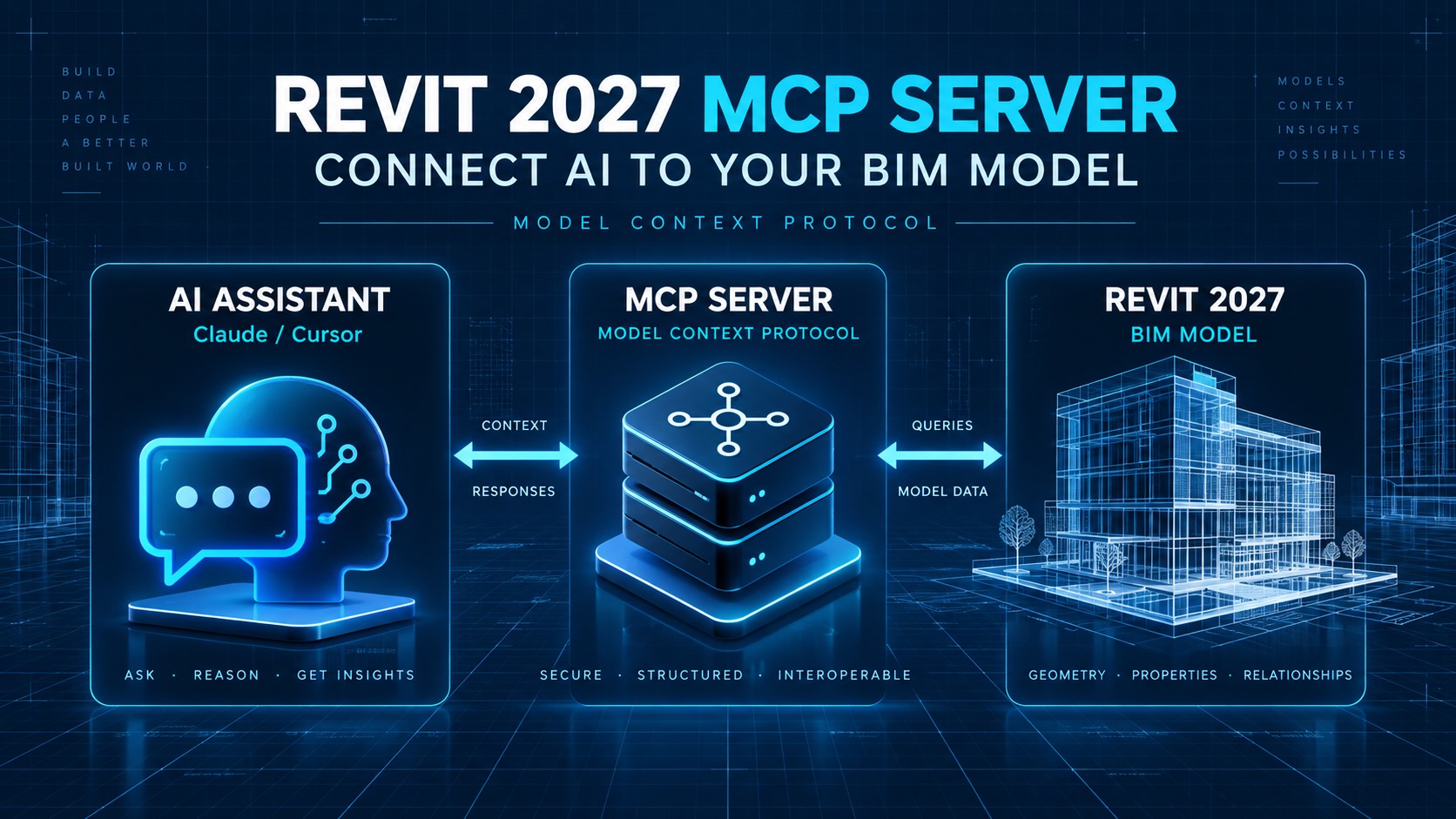
Revit automation has traditionally meant writing an add-in, building a Dynamo graph, or moving model data into another system. The Revit 2027 Public MCP Server introduces another option: an AI client can call a defined set of tools against a live Revit session through the Model Context Protocol.
That does not mean an AI assistant can freely redesign a project. The downloadable Autodesk server is currently a Read-Tools Technology Preview. Its purpose is to query, inspect, navigate, select, and export model information while Autodesk develops the foundation for broader capabilities.
Quick Answer
Quick answer: The Revit 2027 Public MCP Server connects MCP-compatible desktop clients such as Claude Desktop and Cursor to a running Revit model. The current downloadable preview provides seven read-oriented tools for finding Revit instances, querying models, retrieving element data, selecting and zooming to elements, opening views, and exporting views. It is a Technology Preview, so teams should test it with non-sensitive models, validate every result, and keep human approval in the workflow.
What Is MCP?
Model Context Protocol, or MCP, is an open standard for connecting AI applications to external data and tools. An MCP host runs one or more clients, and each client communicates with an MCP server that exposes a specific set of capabilities. The server describes its available tools and their input schemas, while the host remains responsible for permissions, user consent, and the overall interaction.
For Revit, the architecture is straightforward: the AI application interprets the user’s request, the Revit MCP server translates an approved tool call into a controlled Revit operation, and the result returns to the AI client. MCP standardizes that connection; it does not remove the need to understand what each tool can do.
Why MCP Matters for BIM
BIM models contain structured information, but accessing it often requires product-specific commands, schedules, exports, or custom code. MCP gives an AI client a consistent way to request that information through tools with defined inputs and outputs.
For a BIM team, the immediate value is not autonomous design. It is faster access to model context. A user can describe the question in natural language, let the client assemble the appropriate read-tool calls, and then review the result in Revit or in an exported report.
Autodesk MCP and Agentic AI Strategy
Autodesk has positioned public MCP servers as trusted connectors for Design and Make workflows. Its broader Platform Services strategy includes MCP servers, data APIs, a marketplace for integrations, and future paths for certified third-party tools to work with Autodesk Assistant.
The Revit Public MCP Server is one part of that strategy. Autodesk describes the current release as an official foundation for reliable model access, with the option to run it alongside other specialized servers. That matters because an official read server and a community-built server may expose very different operations, security assumptions, and support expectations.
How to Download the Revit 2027 MCP Server
- Install Revit 2027 and sign in with an Autodesk account that has the appropriate Revit entitlement.
- Open Autodesk Account and go to Products and Services.
- Find Revit, select View Details, and open the Extensions section.
- Download Revit 2027 MCP Server Read-Tools Technical Preview.
- Install the add-on, then restart the supported desktop AI client if necessary.
Autodesk states that the installer can configure Claude Desktop or Cursor automatically when those applications are present. The server communicates through standard input and output, so other MCP-compatible desktop clients may use the same general connection pattern when they support local MCP servers.
What Can the Revit MCP Server Do Today?
The June 2026 Autodesk release describes seven tools in the downloadable Public MCP Server. Together, they support read, query, navigation, selection, and export workflows without providing unrestricted model-writing access.
Get Running Revit Instances
This tool identifies running Revit sessions and returns details such as the process ID and open document name. It gives later tool calls the correct Revit target when more than one model or Revit instance is open.
Query Model
Query Model searches for elements using criteria such as category, family, name, level, parameter values, or spatial boundaries. Results can include element IDs and a summary that helps the AI client refine a follow-up request.
Get Element Data
After a query returns element IDs, Get Element Data retrieves information about those elements. Depending on the request, that can include basic identity, family and type data, levels, bounding boxes, and instance or type parameters.
Select Elements
Select Elements highlights specified element IDs in the active Revit session. It creates a practical handoff from an AI-generated result to a person who wants to inspect the elements directly.
Zoom to Elements
Zoom to Elements focuses the active view on identified elements. This is useful when a model query finds a potential issue and the user needs immediate visual context.
Open View
Open View activates a Revit view by its element ID. An AI client can use it to take the user to the relevant plan, section, schedule, or 3D view as part of a guided review.
Export View
Export View can export supported views as image files or PDFs, and schedule data as CSV. Autodesk documents options for exporting specified views, the active view, or the visible region, which can support review packages and reporting workflows.
Practical BIM Workflow Examples
- Model inventory: Find categories or families in the current model and summarize counts before a coordination review.
- Parameter review: Query elements that match a condition, retrieve their relevant parameters, and inspect the returned list.
- Visual investigation: Select or zoom to queried elements so a coordinator can confirm the issue in context.
- View navigation: Open a specified view from an AI-assisted review without manually searching the Project Browser.
- Reporting: Export a view, PDF, or schedule CSV for a controlled downstream review.
These examples still require the user to check the query scope, model state, and exported result. A confident natural-language response is not proof that the underlying model query was complete.
Revit MCP vs Revit API
The Revit API is the foundation for deep desktop automation. Developers can build add-ins that create or modify elements, respond to Revit events, provide custom interfaces, and enforce detailed business logic. That power comes with software-development, deployment, versioning, and testing requirements.
Revit MCP serves a different role. It exposes a defined tool layer that an AI client can discover and call. The current Autodesk Public MCP preview is narrower than a custom Revit API add-in, but it can make supported model queries and navigation tasks accessible through natural-language workflows.
Revit MCP vs Dynamo
Dynamo is a visual programming environment for repeatable Revit and data workflows. A graph can make its logic visible, accept structured inputs, and perform model changes when its nodes support those operations.
MCP is not a replacement for those graphs. It is an interface between an AI client and exposed tools. A team might use MCP to investigate a model or guide a user to relevant elements, while Dynamo continues to handle a deterministic, reviewed transformation.
Revit MCP vs AEC Data Model API
The Revit Public MCP Server works with a running desktop Revit session and the model open in that session. The AEC Data Model API provides structured access to granular BIM data in Autodesk’s cloud platform, which makes it better suited to services such as dashboards, cross-system integrations, analytics, and automated checks that should not depend on an active Revit desktop.
AI can be used with either approach, but their operating contexts are different. Revit MCP connects an AI client to defined desktop tools; the AEC Data Model API is an application programming interface for cloud model data.
Comparison Table
| Technology | Primary Role | Requires Revit Running | AI-Oriented | Typical Use |
|---|---|---|---|---|
| Revit API | Deep Revit automation | Yes | No | Plugins/model modification |
| Dynamo | Visual automation | Yes | No | Repetitive model/data workflows |
| Revit MCP | AI-to-Revit interface | Yes | Yes | Natural-language model queries/tool calls |
| AEC Data Model API | Cloud BIM data | No | Optional | Dashboards/QA/analytics/integration |
Important Clarification: Read Tools vs Write Capabilities
The downloadable Revit 2027 Public MCP Server covered here is the Read-Tools Technology Preview. Autodesk’s June 17, 2026 announcement defines its current focus as read-only model access through the seven query, navigation, selection, and export tools listed above.
Other Autodesk Assistant or Revit What’s New material may describe workflows such as bulk parameter editing. That does not mean the downloadable Public MCP Read-Tools server provides unrestricted write access. Autodesk has said that future create, modify, and manage capabilities are planned for a dedicated write server so read and write permissions can remain separated.
Community MCP servers may already expose write operations, but those projects are separate from Autodesk’s official Public MCP Server. Their code, permissions, maintenance, and safeguards must be evaluated independently.
Claude, Cursor, and Other MCP Clients
Autodesk identifies Claude Desktop and Cursor as practical starting points and states that the installer can add their local server configuration automatically. The important word is desktop: a browser-only AI interface cannot directly launch the local Revit MCP executable.
Because the server communicates over standard input and output, another client may also connect if it supports local MCP servers and can be configured to launch the installed executable. Compatibility, permissions, and tool presentation still depend on the client.
Revit MCP Troubleshooting
- Confirm that Revit 2027 and the separate Read-Tools Technology Preview add-on are installed.
- Use a desktop MCP client, not only the client’s web interface.
- Open Revit and load the model that should be queried.
- Check whether the client lists a Revit MCP server or connector in its developer settings.
- If automatic configuration failed, verify that the client’s MCP configuration points to the installed Autodesk Revit MCP server executable.
- Close and restart the AI client after correcting its configuration.
- If multiple Revit sessions are open, confirm that the tool is targeting the intended process and document.
Autodesk’s Claude Desktop support article identifies incomplete client configuration as a common connection cause. Paths and filenames can change between preview builds, so use the path installed on the current computer rather than copying an older example without checking it.
Security and Human Approval
MCP tools can expose project information to an AI client and may perform actions in external software. The official MCP specification recommends clear tool visibility, user consent, and a human-in-the-loop approval path. Tool descriptions and results should not be trusted blindly.
- Start with a non-confidential test model and a narrowly defined question.
- Review which tools the client exposes and when it requests permission to call them.
- Validate element counts, filters, parameters, selections, and exports in Revit.
- Do not send company, client, or project data to an AI service unless the organization’s policy and contract allow it.
- Review community servers separately, especially when they include write tools.
What This Means for BIM Managers
MCP introduces a new governance layer for BIM automation. Managers will need an inventory of approved servers and clients, a clear distinction between read and write capabilities, rules for sensitive model data, and a validation process for AI-generated answers.
It may also change how teams package reusable automation. Instead of building every user experience into a single add-in, developers can expose focused capabilities as tools and allow an approved AI client to coordinate them. The value depends on predictable tool behavior and disciplined access control, not on the novelty of natural-language prompts.
Should Teams Use It in Production Today?
Teams can evaluate the Revit Public MCP Server today, but it should be treated as a Technology Preview rather than a finished production standard. A sensible first pilot is a read-only review on a copied or non-sensitive model, with known expected results and a person checking every output.
Do not design a critical production process around a preview tool without testing version compatibility, failure behavior, data handling, and client permissions. The current read-oriented scope reduces destructive risk, but incorrect or incomplete answers can still affect decisions if they are accepted without verification.
AI-to-Revit Architecture: Where the Boundaries Sit
Results return through the same chain. Approval is a responsibility of the client/user workflow; the protocol name alone does not prove that a client enforces a confirmation gate. Check the target instance, query scope, permissions, and returned elements before relying on a result.
MCP Capability Boundary
| The current tool layer can | It cannot automatically | Reviewer check |
|---|---|---|
| Call tools exposed by the installed server | Invoke arbitrary Revit functionality that has no exposed tool | Read the tool name, input schema, and supported operation |
| Inspect supported model context through the read/query tools | Guarantee the query matches your BIM intent or includes every relevant element | Check document/instance, filters, view scope, and sample returned IDs |
| Navigate, select, and export through the documented tools | Bypass account, client, file, or organizational permissions | Confirm access and export destination; protect sensitive model data |
| Perform explicitly exposed operations within their documented scope | Replace human review or provide unrestricted create/modify access in this Read-Tools preview | Validate results in Revit; evaluate any separate community/write server independently |
Graph-authoring workflows are a separate topic: see Autodesk Assistant and Dynamo graph generation. A generated graph still needs review before execution.
Final Takeaway
The Revit 2027 Public MCP Server is a practical early bridge between AI clients and live BIM context. Its seven tools can locate a Revit session, query a model, inspect element data, guide navigation and selection, and create controlled exports.
Its biggest significance is architectural: MCP gives Autodesk, software developers, and BIM teams a shared pattern for connecting AI to well-defined capabilities. For now, the downloadable Autodesk server remains a Read-Tools Technology Preview. Test it carefully, keep humans in control, and do not confuse future write-server plans or community write tools with what the official public download provides today.
Official Sources
- Autodesk Support — How to download the Revit MCP server? (September 7, 2026)
- Autodesk AEC Tech Drop — Introducing the Revit Public MCP Server: A Trusted Foundation for AI-Powered Workflows (June 17, 2026)
- Autodesk Revit Help — Revit Public MCP Server (Tech Preview)
- Autodesk Platform Services — Building for Agentic AI: What’s New in Autodesk Platform Services (April 15, 2026)
- Autodesk Support — Cannot connect Revit MCP Server with Claude Desktop
- Official Model Context Protocol Documentation — Architecture
- Official Model Context Protocol Documentation — Tools