The question is no longer simply whether an AI assistant can connect to Revit. For Autodesk Revit 2027 users, the more important question is what that connection is allowed to do to a model.
The first public Revit MCP preview focused on querying and navigating model information. Autodesk later added separate Write and Experimental technical previews, making it essential to distinguish a read-oriented inspection workflow from one that can change BIM data. This guide explains how to choose the right server, configure a supported client, and validate a model-editing test without treating AI output as proof of correctness.
This is a documentation-based guide, not a claim that BuildTech Scope independently ran or benchmarked any of the preview tools.
Quick Answer
Choose Read if you only need to inspect, query, navigate, or report on a Revit model. Choose Write when you need supported model changes with a tightly controlled test and review process. Choose Experimental only when you deliberately want to evaluate newer, less mature capabilities on disposable models.
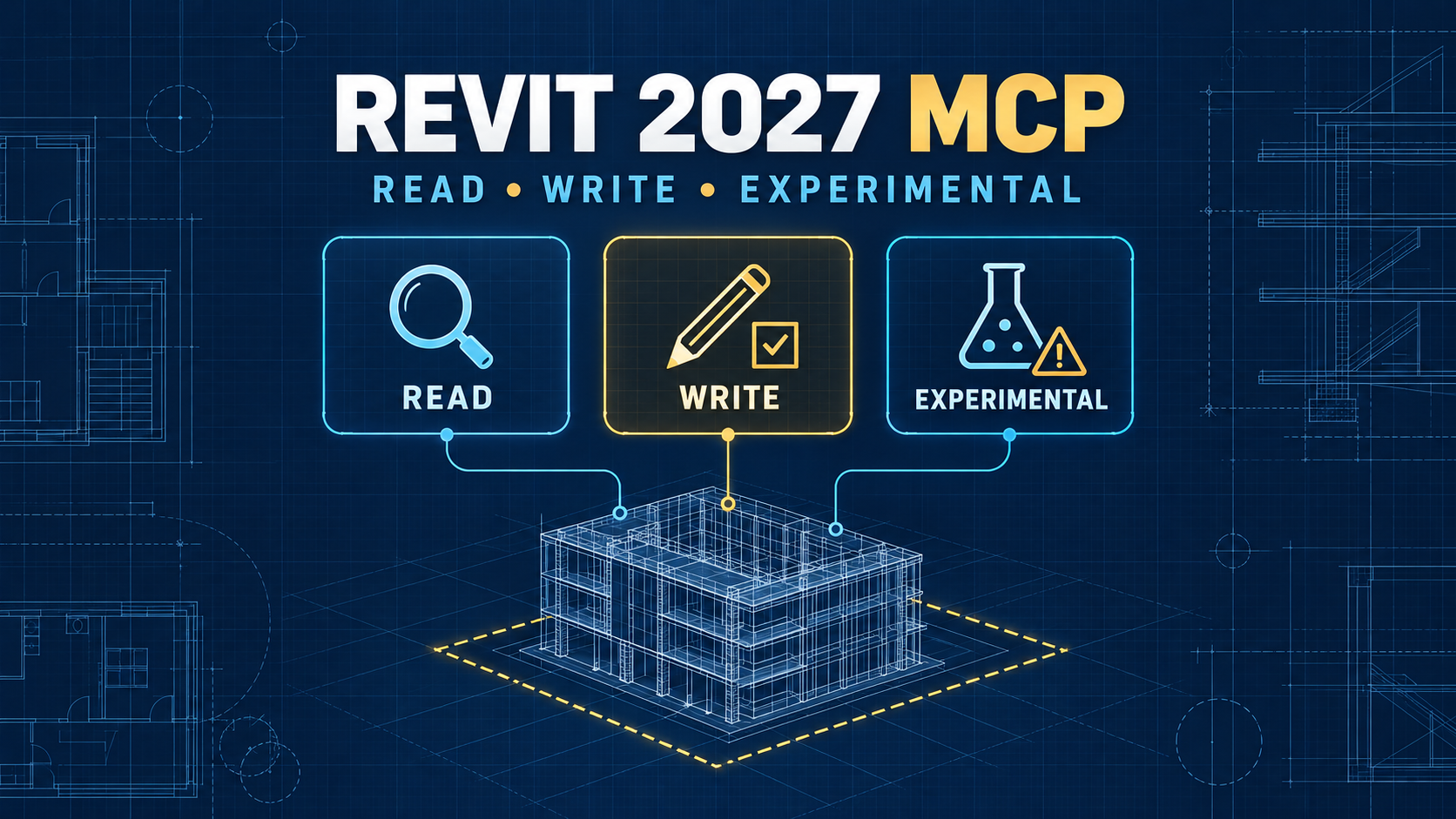
Autodesk documents three Revit Public MCP Server variants: Read, Write, and Experimental. Write includes the Read tool set; Experimental includes both Read and Write plus experimental capabilities. These are separate add-on choices, not three programs you must always install together.
Autodesk’s current MCP Help says this Technical Preview is supported only on Revit 2027.2, with a running Revit session and a model open. The September 29, 2026 Autodesk developer post instead refers to Revit 2027.2 or later. For deployment, follow the narrower current Help requirement; do not treat that older wording as confirmation of Revit 2027.3 or later compatibility. Check matching official support documentation and the installer before using another build.
What Changed From the Original Read-Only Preview?
Autodesk introduced the downloadable public Revit MCP server with read-oriented tools in June 2026. Those tools were designed to inspect model data and navigate the Revit session rather than provide unrestricted creation or editing.
On September 29, 2026, Autodesk explained that the server options had expanded to include Write-Tools and Experimental-Tools previews alongside Read-Tools. An Autodesk Community announcement in September likewise described Write as a more controlled option and Experimental as a wider, more exploratory tool set.
This matters because an article stating that all current Autodesk public Revit MCP tools are read-only would now be incomplete. It remains true for the Read configuration, but not for the whole server family. For the initial seven-tool baseline, see our earlier Revit MCP introduction; its Read-only framing describes the earlier preview, not the full current server family.
Read vs Write vs Experimental: Which Server Should You Use?
| Server | Included capabilities | Best starting use | Risk to an open model |
|---|---|---|---|
| Read-Tools Technical Preview | Read tools | Model inspection, element queries, reports, navigation | Does not modify the Revit model according to Autodesk; model data may still be shared with the AI client |
| Write-Tools Technical Preview | Read + supported Write tools | Controlled, reviewed changes on a test model | Can change model content; confirm target elements and results |
| Experimental-Tools Technical Preview | Read + Write + Experimental tools | Evaluating emerging workflows on disposable projects | Can change model content; capabilities may evolve or behave differently |
A useful default is least privilege: start with Read, and only move to Write when there is a specific, validated reason. Experimental is for evaluation, not an automatic productivity upgrade.
Do not infer that every Revit API operation or every natural-language request is supported. The AI client can only call tools actually exposed by the installed server. Discover available tools in the client rather than copying a tool-name list from an older blog post.
Step 1: Confirm Your Revit Version and Client
Before installing a server, check your exact Revit build and Autodesk Account entitlement. Autodesk’s current MCP Help limits this preview’s supported version to Revit 2027.2, while the September developer update describes 2027.2 or later. Do not assume that a later Revit release is supported; obtain matching official compatibility guidance before deployment.
Also confirm that you have a desktop client capable of launching a local MCP server through STDIO. Autodesk’s examples include Claude Desktop and Cursor. Availability and subscription terms for AI clients depend on the vendor; installing the Autodesk add-on does not mean every AI subscription is included.
Do not confuse the official Autodesk Revit Public MCP Server with unrelated community MCP plug-ins, Autodesk Assistant capabilities, or web-only chat interfaces. They may have different tools and authorization behavior.
Step 2: Download the Appropriate Add-On
Use Autodesk Account and the product’s download or Extensions area to locate the appropriate Revit MCP technical-preview installer. Autodesk’s September 29 developer article describes the Read, Write, and Experimental options as separate installer choices.
Choose the least powerful option that satisfies your use case. You do not need to install all three simply to run the Write tool set.
Before installation, save a backup of your test RVT file and close or secure any sensitive projects. Keep a record of the add-on version you installed; technical-preview configuration can change.
Do not obtain unofficial installers from search-result ads or third-party download mirrors when the Autodesk Account download is available.
Step 3: Configure Claude Desktop or Cursor
Autodesk’s current setup guide contains configuration examples for Read, Write, and Experimental in both Claude Desktop and Cursor. Use the matching configuration for your chosen server.
For Claude Desktop, the official workflow uses its developer settings to open claude_desktop_config.json. The Write example exposes separate Read and Write client entries with different permission arguments. That distinction is intentional: do not remove permission arguments or rewrite them to bypass safeguards.
For Cursor, the official guide points to %USERPROFILE%\.cursor\mcp.json and notes that an executable path with spaces may require a Windows short path. Obtain the actual short path from the local machine rather than pasting a sample path blindly.
Some earlier Autodesk materials discuss installer-generated client configuration; the current setup documentation instructs manual configuration during the preview. Inspect the configuration that actually exists, merge only the needed entries, and do not overwrite other working MCP servers.
After saving valid JSON, fully restart the desktop client. Even a single unescaped Windows backslash or a trailing comma can make an MCP configuration fail to load.
Reference: Autodesk’s Setting Up Revit Public MCP Server.
Step 4: Verify the Connection Before Asking for Changes
Open the supported Revit build and load a synthetic test model. Then open Claude Desktop or Cursor and confirm that the Revit server is connected.
Start with a discovery prompt:
List the available Revit MCP tools. Do not modify the model.
If the client reports available tools, identify whether you have the intended Read, Write, or Experimental configuration. Next, request a read-only check, for example:
List the walls in the open test model and show their element IDs and Mark values. Do not change anything.
Cross-check a sample of the returned IDs and values directly in Revit. A confident AI response is not proof that the correct document, view, or element selection was used.
Step 5: Run a Safe Write Pilot on Synthetic Data
Do not begin with a company model, client deliverable, or shared production file. Use a disposable Revit project with two obvious test elements, for example two walls carrying fictional Mark values BTS-TEST-01 and BTS-TEST-02.
Record the Revit version, project name, element IDs, current Mark values, and the server configuration. Save a separate backup copy.
A cautious proposed task is:
On the open disposable test project only, identify the two test walls by their exact element IDs. Before making any change, show the intended old and new Mark values and ask for my approval. Do not run any write operation unless the client supports explicit approval and I approve that exact change.
If your client does not provide an approval checkpoint, stop rather than assuming the text of a prompt enforces one. Read the tool permissions and client confirmation interface yourself.
After a permitted write, verify both elements inside Revit, then record expected versus actual parameter values. Check for collateral changes, errors, partial completion, and whether the output identifies exactly what changed. Keep the backup until verification is complete.
This is a suggested test plan, not a claim that the specific Mark-editing operation is included in every build. First verify the installed server actually exposes an appropriate supported tool.
Step 6: Troubleshoot Common Connection and Permission Problems
| Symptom | What to check first | Safer next action |
|---|---|---|
| MCP server does not appear | Invalid JSON, executable path, client restart | Compare with the current Autodesk example and restart the desktop client completely |
| Server appears but cannot find a model | Revit closed, no model open, wrong running instance | Open the intended test project and check Revit session targeting |
| Only read-oriented tools appear | Installed server variant or client permissions | Confirm whether you selected Read, Write, or Experimental; do not bypass permissions |
| Cursor fails to launch the server | Executable path contains spaces | Follow Autodesk’s Windows short-path guidance for the installed folder |
| AI suggests a tool that is unavailable | Tool set changed or unsupported capability | Discover the actual tool list and limit the request to documented capabilities |
| Edit result differs from the approved plan | Wrong target IDs, partial write, unexpected effect | Stop, compare against the backup, document the discrepancy, and do not repeat blindly |
For technical-preview software, a reproducible test record is often more useful than repeated reinstalls. Record the exact installer, Revit build, client version, JSON configuration shape (without secrets), target document, and error message.
Local Server Does Not Mean Private AI Processing
Autodesk says the Public MCP Server runs locally on the workstation rather than as an internet-accessible public server. But model information returned by tools can be sent to the configured AI/MCP client, and the client’s own processing and retention policies determine where those results go.
Do not publish or transmit a client model, BIM parameter values, file paths, project names, or proprietary elements to an AI service without the organization’s permission. Where policy is unclear, use synthetic sample data. Review exported views and reports as carefully as written answers.
A locally hosted tool process and a cloud-based language model are different privacy boundaries. Treat them separately in your BIM governance checklist.
A Practical Approval and Verification Checklist
Before moving beyond a disposable test, confirm that the team has documented the installed server type, compatible Revit build, permitted tool categories, approved AI client, data-handling policy, and responsible reviewer.
For every write test, preserve a before/after comparison that includes the target document, element IDs, parameter names, expected values, actual values, errors, and reviewer decision. An acceptable result is not simply “the agent said it worked.” The change must be visible and correct in the Revit model.
For production, require a separate organization-approved risk review. The presence of a Write tool or a confirmation button does not alone establish that the workflow is safe for live shared models.
FAQ
Is the Autodesk Revit MCP Server still read-only?
The Read-Tools configuration is read-only with respect to model modifications. Autodesk now also documents separate Write and Experimental previews that can modify models. Choose the appropriate configuration deliberately.
Does Revit 2026 support Autodesk’s current Public MCP preview?
Autodesk’s current official preview documentation limits support to Revit 2027.2. Do not assume this specific official preview is supported on Revit 2026. Separate community products are not equivalent to the Autodesk server.
Must I install all three MCP servers?
No. Autodesk’s developer guidance says to choose the installer appropriate for the workflow; Write includes Read capabilities, and Experimental includes both.
Do I need a separate Claude or Cursor subscription?
An MCP-capable AI client is required, and some client features may require a subscription. Check the client’s current licensing; the Autodesk MCP add-on does not determine third-party pricing.
Will a Write server automatically ask before every model change?
Do not assume so. Autodesk advises reviewing proposed modifications, but the exact confirmation experience depends on the server, AI client, configuration, and tool. Verify the approval flow before allowing any edit.
Can the MCP server send BIM data outside my computer?
The server itself runs locally, but returned tool data can be passed to the configured AI client and may be processed elsewhere under that client’s policies. Use synthetic data unless information sharing is authorized.
Final Takeaway
Revit 2027 MCP is now a permission and workflow decision, not just a download decision. Use Read for inspection, Write for bounded changes that you can verify, and Experimental for deliberately isolated evaluations. Install from Autodesk, follow the configuration matching your build, discover the real available tools, and make the model—not the AI answer—the final source of truth.
Editorial transparency: This article summarizes Autodesk documentation checked on October 18, 2026. The sample prompts and element values are synthetic and were not executed in Revit by BuildTech Scope. Autodesk’s technical-preview tools and compatibility guidance may change.
Official Sources
- Autodesk MCP Help — Revit Public MCP Server — read/write/experimental permissions, build requirement and risk notice.
- Autodesk MCP Help — Setting Up Revit Public MCP Server — current Claude Desktop and Cursor configuration and troubleshooting.
- Autodesk Developer Blog — Revit MCP Server Update — September 29, 2026 announcement of three installers and workflow examples (Japanese).
- Autodesk Community — Revit MCP Server Tech Preview Launch — September 10, 2026 staff description of Trusted-Write vs Experimental.
- Autodesk Support — Usage of Revit 2027 MCP Server — October 14, 2026 privacy caution.
- Autodesk AEC Tech Drop — Introducing the Revit Public MCP Server — June 17, 2026 initial read-tool baseline, historical, not the full current scope.